Online Functions
iCube Engineer provides a so-called 'Online Functions' editor. The editor is available on the EtherCAT Master node in the PLANT.
General information on how to setup and configure an EtherCAT system is described in the help chapter "EtherCAT-specific Properties".
The online functions are used to determine the current state of the EtherCAT network in a simple way. Information about the components involved as well as about the communication between the nodes is retrieved from the network and displayed in various editor tabs. Thus, the available editors allow a detailed diagnosis.
iCube Engineer provides a so-called 'Online Functions' editor. The editor is available on the EtherCAT Master node in the PLANT.
General information on how to setup and configure an EtherCAT system is described in the help chapter "EtherCAT-specific Properties".
The online functions are used to determine the current state of the EtherCAT network in a simple way. Information about the components involved as well as about the communication between the nodes is retrieved from the network and displayed in various editor tabs. Thus, the available editors allow a detailed diagnosis.
Preparations & Preconditions
To use the EtherCAT online functions, it is not required that the PLANT tree represents (models) the EtherCAT topology in iCube Engineer. This means, the structure of the PLANT in iCube Engineer may differ from the actually connected EtherCAT network. However, the controller must be connected to iCube Engineer.
 Preparations: Connect to the controller

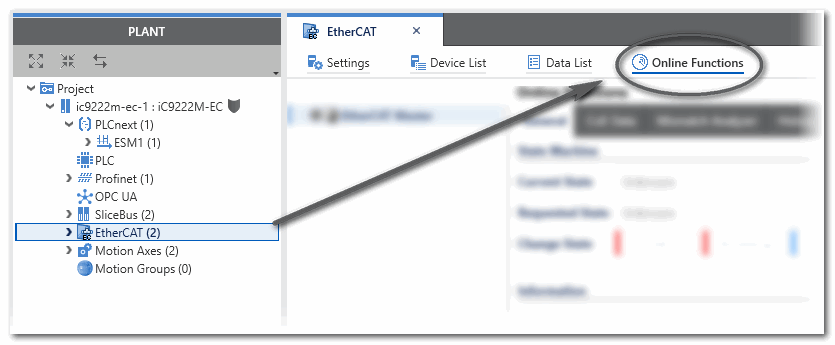
To open the editor, double-click the 'EtherCAT' node in the PLANT and then click 'Online Functions' in the editors area.
If the controller is connected as described above, the editor automatically opens the online channel to the EtherCAT Master system.
Example: Opening the EtherCAT 'Online Functions' editor
Functions of the EtherCAT Online Functions editor
- Display basic information on the EtherCAT Master and slave stations connected to the controller (which in turn is connected to the PC on which iCube Engineer runs) as well as on their topology.
- Displays information on the ongoing EtherCAT communication.
- Displays and allows to change the state of the EtherCAT Master and each slave.
- Provides read and (if allowed by the node) write access to the CoE data of each node.
Structure of the EtherCAT Online Functions editor
On the left, the found EtherCAT network nodes are listed. An LED-like icon symbolizes the current state of the node.
The colors of this icon corresponds to the color of the state icon displayed on the right (in the editor section 'State Machine'): Red = Init or Bootstrap, blue = Pre-Op, yellow = Safe-Op and green = Op.
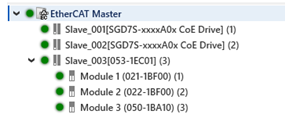
The information displayed in the tab on the right and the operations you perform there relate to the EtherCAT node selected in the tree.
On the right side, several editor tabs are visible, depending on the selected node (EtherCAT master or slave)
- 'General' tab (available for the master and slaves)
- 'CoE Data' tab (available for the master and slaves)
- 'Mismatch Analyzer' tab (only available for the master)
- 'Extended Diagnostics' tab (only available for slaves)
- 'DC Diagnostics' tab (only available for slaves)
- 'History' tab (only available for slaves)
- 'FoE' tab (only available for slaves)
Preparations & Preconditions
To use the EtherCAT online functions, it is not required that the PLANT tree represents (models) the EtherCAT topology in iCube Engineer. This means, the structure of the PLANT in iCube Engineer may differ from the actually connected EtherCAT network. However, the controller must be connected to iCube Engineer.
Preparations: Connect to the controller
To open the editor, double-click the 'EtherCAT' node in the PLANT and then click 'Online Functions' in the editors area.
If the controller is connected as described above, the editor automatically opens the online channel to the EtherCAT Master system.
Example: Opening the EtherCAT 'Online Functions' editor
Functions of the EtherCAT Online Functions editor
- Display basic information on the EtherCAT Master and slave stations connected to the controller (which in turn is connected to the PC on which iCube Engineer runs) as well as on their topology.
- Displays information on the ongoing EtherCAT communication.
- Displays and allows to change the state of the EtherCAT Master and each slave.
- Provides read and (if allowed by the node) write access to the CoE data of each node.
Structure of the EtherCAT Online Functions editor
On the left, the found EtherCAT network nodes are listed. An LED-like icon symbolizes the current state of the node.
The colors of this icon corresponds to the color of the state icon displayed on the right (in the editor section 'State Machine'): Red = Init or Bootstrap, blue = Pre-Op, yellow = Safe-Op and green = Op.
The information displayed in the tab on the right and the operations you perform there relate to the EtherCAT node selected in the tree.
On the right side, several editor tabs are visible, depending on the selected node (EtherCAT master or slave)
- 'General' tab (available for the master and slaves)
- 'CoE Data' tab (available for the master and slaves)
- 'Mismatch Analyzer' tab (only available for the master)
- 'Extended Diagnostics' tab (only available for slaves)
- 'DC Diagnostics' tab (only available for slaves)
- 'History' tab (only available for slaves)
- 'FoE' tab (only available for slaves)