NOTIFICATION LOGGER Window
Notifications sent by the iC9200 Series target (i.e., sent by firmware components) are shown in the NOTIFICATION LOGGER window. Notifications are messages referring to special events that occurred on the controller. You can use the NOTIFICATION LOGGER for analyzing the firmware and applications running on the controller.
The notifications are also displayed in the 'Notification' category of the PLCnext Cockpit. The category provides the same information and operating options as provided in the NOTIFICATION LOGGER window. For details, see the topic "Controller Diagnostics out of the Cockpit".
 | You can hide/show the window by clicking the button shown left on the Cross Function Area toolbar. For closing the window, you can also click the cross icon on the right of the window title bar: 
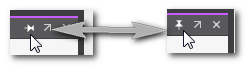
 How to pin/unpin the window in the Cross Function Area How to pin/unpin the window in the Cross Function Area  How to undock/dock the window
  / /
|
 | If the window is closed and contains at least one element, the icon on the Cross Function Area toolbar is shown with an envelope icon. |

| Note
iCube Engineer must be connected to the controller for reading the notifications from the controller and displaying them in the NOTIFICATION LOGGER window. |
The notifications table is updated every second when a connection to the iC9200 Series controller is established. New notifications appear at the top of the list. For each notification, the following information is provided in the notifications table:
| Information | Description |
|---|---|
| Severity | Severity level of the notification displayed by the following icons:
 Internal (or Default) Internal (or Default)
 Information Information
 Warning Warning
 Error Error
 Critical error Critical error
 Fatal error Fatal error |
| Sender | Name of the sender of the notification. |
| Time | Timestamp of the notification. |
| Name | Name of the notification. |
| Details | Full text/payload of the notification. |


