Scanning the Network for a Controller (Empty Project)
The following is assumed:
- The project was created by selecting the 'File > New Project' menu command. The PLANT is empty except the root node as shown below.
- You have already configured the IP range for the project.
If you have selected a suitable project template on project creation, proceed as described in the topic "Scanning the Network for a Controller with a Controller-based Template".
| Note
For a network scan as described below, it is not necessary to manually establish a communication connection using the 'Connect' command (controller context menu in the PLANT) before the scan. This is done automatically by iCube Engineer. |
| Note
Only PROFINET ports support the scan function! The network scan function described below is only supported by the PROFINET ports of the controller. If the controller involved has both PROFINET and Ethernet ports, controllers are not detected when connected via an Ethernet port. |
- Double-click the 'Project' node to open its properties in the editors area.
In the editors area, open the 'Online Controllers' editor (see (1) in the figure below). - In the drop-down list (2), select the LAN adapter of your computer which is connected to the controller network to be scanned.
- Click the 'Scan the network' button (3) on the 'Online Controllers' toolbar.
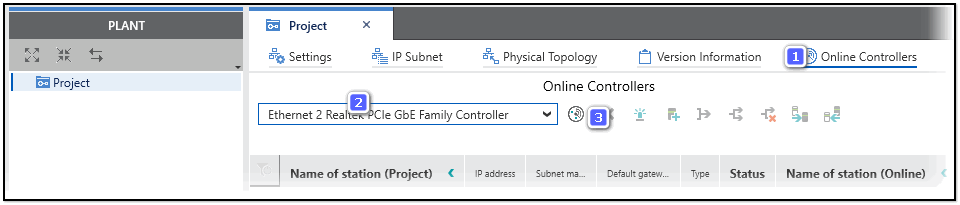
The network is scanned and found controller devices are listed in the table.

The columns to the left of the 'Status' column represent the configuration edited in the project. These columns are empty as you started with an empty project and the found controller has not yet been added to the project.
The
 icon in the 'Status' column indicates that the scanned device is not yet contained in the project.
 - Select the table line with a found controller and execute the command 'Add To Project' from the context menu or click the following toolbar button:

Note
If a scanned device cannot be uniquely identified because, for example, more than one matching device type is available in the COMPONENTS area ('Device' or 'References' category), the 'Station structure preview' dialog appears. In the dialog, select the 'Type' of the scanned device from the drop-down list and confirm to continue.
The 'Online Controllers' table is updated on project side by the name and the communication settings are read from the controller. The 'Status' icon is set to 'OK' (green), i.e., the values of the project device and online device shown in the table columns are identical.Note
If the controller device includes a Safety PLC and you are not logged on to the Safety-related Area, you first have to enter the password for accessing the Safety-related Area. If this is the first edit operation of safety-related data in the current project, you are now prompted to define a password.The controller is added as node in the PLANT using its configured Name of Station. If the 'Function' property is set for the device, it is displayed in the PLANT. If 'Function' is empty, 'Location' is shown (if set).
 Overview: status icons in the device table


| Further Info
Continue with configuring and parameterizing new devices, e.g., for editing the controller IP address. |
| Further Info
The topic "Safety-Related Area with Password Protection" contains details on accessing the safety-related parts of the project. |