Safety PLC Runtime Configuration
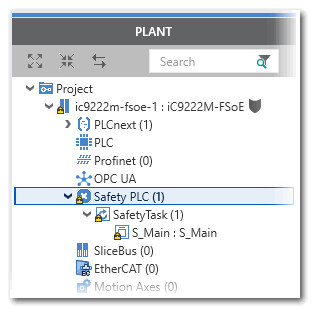
If a Safety PLC is included in your project, the standard (non-safety-related) machine controller and the Safety PLC are strictly separated. Each of it executes its own application, has its own global variables, and its own runtime configuration. Therefore, the Safety PLC is represented by a separate icon in the PLANT. Double-clicking this icon opens the safety-related editors.
This topic contains the following sections:
- Safety Task
- Configuration steps for the Safety PLC runtime
- 'Safety PLC' PLANT node
- Safety PLC runtime editors
Safety Task
In contrast to the standard machine controller, the Safety PLC executes exactly one task in which exactly one program is instantiated which is always the safety-related program named S_Main. Both the safety-related task and the program instance are created automatically on insertion of a controller with a Safety PLC in the PLANT. The program instance can neither be deleted nor edited and only the task properties 'Interval (ms)' and 'Watchdog (ms)' can be modified (see second list item in section "Configuration steps..." below).
| Note
Further safety-related programs can be created in the COMPONENTS area but they are not executed. |
The safety-related task is triggered by the SafetyProxyTask which is an application of the standard iC9200 Series controller. This means, the standard SafetyProxyTask triggers the execution of the Safety PLC and therefore of the safety-related task which is executed there.
The SafetyProxyTask is automatically created in the 'Tasks and Events' editor of the iC9200 Series target when inserting a Safety PLC in the PLANT. The SafetyProxyTask cannot be edited or deleted.
For the SafetyProxyTask, no 'Program Type' can be selected. Instead, the task always executes the Safety Proxy application which triggers the execution of the Safety PLC.
Configuration steps for the Safety PLC runtime
The Safety PLC runtime configuration comprises the following steps.
- Making sure that the S_Main program is available under 'COMPONENTS | Programming > Local > Programs' and contains the correct code. This program is instantiated by default and no other safety-related program can be instantiated additionally or instead.
- Adjusting the execution interval as well as the watchdog time for the safety-related task, if required.
For that purpose, double-click the 'Safety PLC' PLANT node and open the 'Tasks and Events' editor. Edit the time value fields 'Interval (ms)' and 'Watchdog (ms)' of the 'SafetyTask' according to the results of your risk analysis.
When defining the values, observe the hazard message below this list. - Creating and editing global variables for the Safety PLC.
These may be variables of safety-related or standard (non-safety-related) data types. - Assigning (mapping) global/system variables of the Safety PLC to process data items (I/O terminals).
- Assigning (mapping) standard global variables of the Safety PLC to global variables of the standard (non-safety-related) machine controller thus creating exchange variables. Exchange variables enable the communication between the Safety PLC and the standard machine controller.
|
WARNING
|
Non-conformance to safety function requirements
|
'Safety PLC' PLANT node
Depending on the currently active mode, the 'Safety PLC' node appears different:
- In programming mode, the 'Safety PLC' node can be doubled-clicked to edit the execution interval and the watchdog time of the SafetyTask.
Safety-related POU code worksheets and variables tables cannot be opened via the PLANT tree although the instances are visible below the task nodes. Double-clicking a program/FB instance in the PLANT opens the Data List of this instance in the editors area.
- In monitoring mode or debug mode, you can directly open instance-related code worksheets by double-clicking a program/FB instance icon.
Refer to the topics "Monitoring the Safety PLC ‣ Monitoring/Debugging the Safety PLC
×‣ Monitoring Mode: Displaying Online Values
×" and "Debug Mode: Forcing/Overwriting".
Safety PLC runtime editors
The 'Safety PLC' node provides several editors for configuring the Safety PLC runtime.
Double-clicking the 'Safety PLC' node opens the following editors in the editors area:
- Safety Cockpit for
- switching between simulation and real Safety PLC as target,
- writing and starting a project to the Safety PLC /simulation, and
- controlling the Safety PLC/simulation.
The commands in the Safety Cockpit are only available if a communication connection exists. See topic "Controlling the Safety Application from the 'Safety Cockpit'" for details.